How to Build a Support Escalation Workflow Automation: A Practical 6-Step Guide
Support escalation workflow automation eliminates costly delays and transfers by creating intelligent routing systems that instantly connect complex customer issues with the right qualified agents. This practical guide shows you how to build automated escalation pathways that preserve context, respect priority levels, and ensure critical problems reach decision-makers immediately—preventing customer churn and protecting your team from burnout caused by inefficient manual handoffs.
 Grant CooperFounder16 min read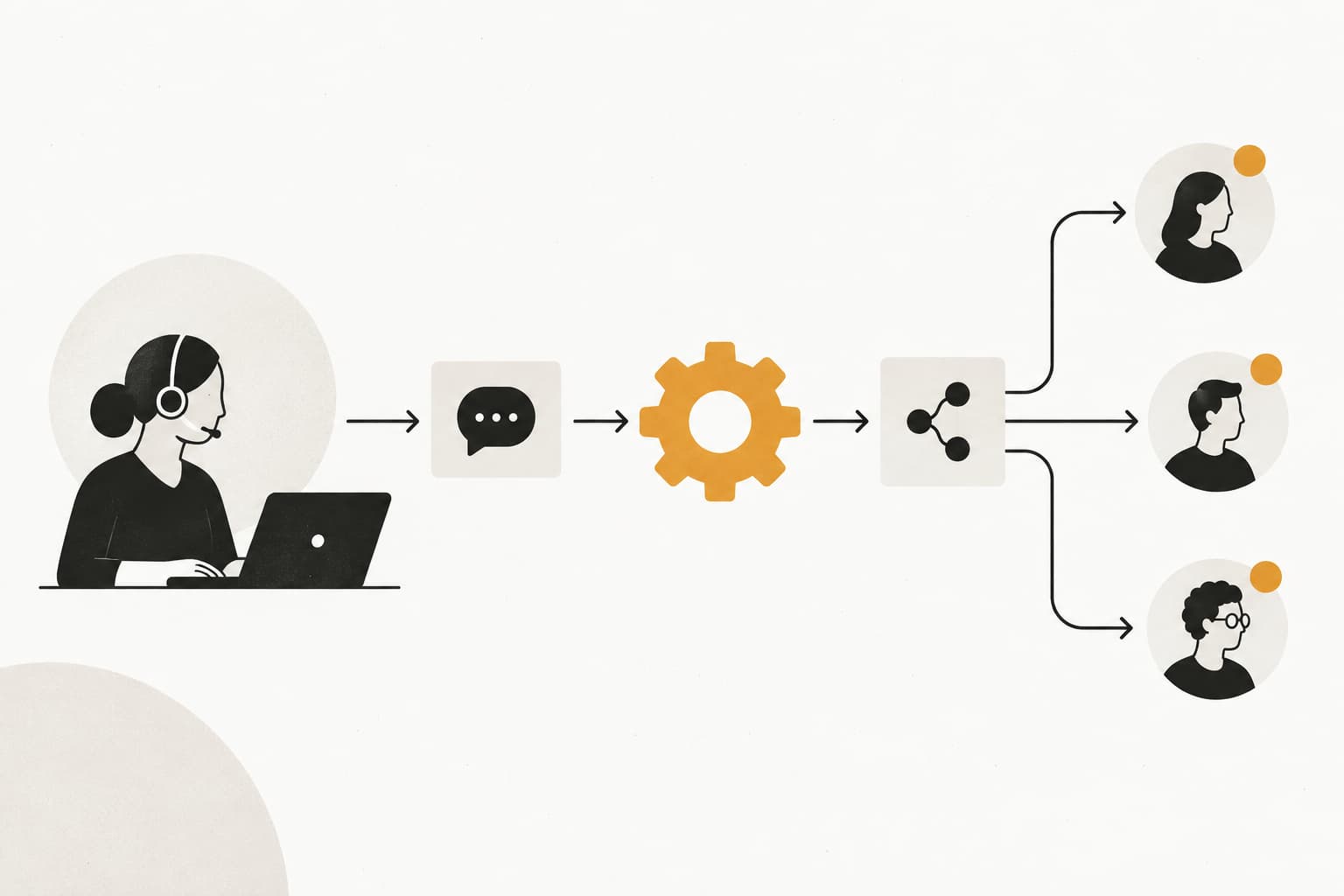
When a frustrated customer's issue bounces between three agents before reaching someone who can actually help, you've already lost. The delay costs you customer trust, agent morale, and often the account itself.
Picture this: A VIP customer reports a billing discrepancy at 4 PM on Friday. The first-tier agent can't access billing systems. They transfer to accounting, who says it's a technical issue. Accounting transfers to engineering, who's already left for the weekend. By Monday morning, you're facing a cancellation notice and a scathing review.
Support escalation workflow automation solves this by creating intelligent pathways that route complex issues to the right people instantly—without manual handoffs or dropped context. Instead of playing hot potato with customer problems, your system makes split-second decisions about who should handle what, when they should receive it, and what information they need to solve it immediately.
This guide walks you through building an automated escalation system from scratch. You'll learn how to identify which tickets need escalation, set up trigger conditions, configure routing rules, and measure whether your automation actually improves resolution times.
Whether you're dealing with VIP customers, technical emergencies, or billing disputes, these steps will help you create escalation paths that work while you sleep. Let's build a system where the right expert gets the right ticket at the right time, every single time.
Step 1: Map Your Current Escalation Paths and Pain Points
Before you automate anything, you need to understand what's actually happening today. Your current escalation process contains valuable intelligence about what works, what breaks, and where customers get stuck in limbo.
Start by pulling the last 200 escalated tickets from your helpdesk. Look for patterns in how they moved through your team. Which tickets got escalated within minutes? Which ones sat in a queue for hours before someone realized they needed specialized attention?
Document every escalation trigger you find. You'll discover that certain keywords consistently signal escalation needs: "urgent," "broken," "can't access," "billing error," "data loss." You'll also find patterns in customer behavior—third contact from the same person, responses sent after business hours, tickets reopened multiple times.
Next, identify your bottlenecks. These are the friction points where tickets get stuck. Common culprits include: agents who lack permissions to access necessary systems, specialized team members who become single points of failure, unclear ownership when issues span multiple departments, and time zone gaps that create overnight delays.
Create a visual map of your escalation paths. For each common scenario, trace the journey from initial contact to resolution. A technical bug report might flow: Tier 1 agent → Technical lead → Engineering team → Product manager. A billing dispute might follow: Support agent → Billing specialist → Account manager → Finance director.
Track the average time spent at each stage. You'll often find that the actual problem-solving takes 15 minutes, but the routing and context-gathering takes three hours. That's your automation opportunity. Using support workflow automation tools can help you identify exactly where these delays occur.
Categorize your escalation types into clear buckets: Technical complexity (requires specialized knowledge), customer tier (VIP accounts get priority routing), issue severity (system outages versus feature requests), and time-based triggers (SLA breaches, after-hours emergencies).
Interview your agents about what they wish happened automatically. They'll tell you exactly where the system fails them: "I always have to ping Sarah in Slack because the system doesn't know she handles enterprise accounts." "Billing issues sit in our queue even though we can't help—we're just the messenger."
Success indicator: You've created a visual map showing all escalation paths with average handling times, and your team has identified at least five specific bottlenecks that automation could eliminate. If you can't clearly articulate why tickets currently get escalated and where they get stuck, you're not ready to automate yet.
Step 2: Define Escalation Triggers and Priority Levels
Now that you understand your current state, it's time to translate human judgment into automated rules. The goal is creating trigger conditions specific enough to catch real escalations without flooding your senior team with false alarms.
Start with keyword-based triggers. Build a library of phrases that reliably indicate escalation needs. For technical issues: "error message," "can't log in," "data missing," "integration broken." For urgent situations: "production down," "can't process payments," "security concern," "legal matter."
But keywords alone aren't enough. A customer saying "this is frustrating" in their first message is different from the same phrase in their fifth response. Context matters.
Layer in sentiment analysis triggers. Modern AI can detect when customer frustration crosses from mild annoyance into genuine anger or distress. Set escalation triggers for: negative sentiment scores below a specific threshold, sentiment that deteriorates across multiple messages, or language indicating the customer is considering cancellation.
Response time thresholds create another powerful trigger category. If a ticket has been open for four hours without resolution, that's a signal. If a customer has replied three times to the same agent without progress, escalate. If an issue was marked "resolved" but the customer reopened it within 24 hours, something went wrong. Implementing support escalation automation helps you catch these patterns automatically.
Customer attribute triggers ensure VIP treatment for your most valuable accounts. Automatically escalate tickets from: enterprise plan customers, accounts above a certain revenue threshold, customers in their trial period (you can't afford to lose them), or accounts flagged as "at risk" in your CRM.
Now establish your priority tiers. A simple four-level system works for most teams:
P1 - Critical: Production systems down, security breaches, data loss affecting multiple customers. Expected response: 15 minutes. Expected resolution: 4 hours.
P2 - High: VIP customer issues, billing problems preventing service use, features broken for specific customer segment. Expected response: 1 hour. Expected resolution: 8 hours.
P3 - Medium: Non-blocking bugs, feature requests from paying customers, questions requiring specialized knowledge. Expected response: 4 hours. Expected resolution: 24 hours.
P4 - Low: General questions, feature requests from free users, documentation clarifications. Expected response: 24 hours. Expected resolution: 72 hours.
Create compound triggers that combine multiple conditions for accuracy. A single keyword might not warrant escalation, but keyword + negative sentiment + VIP customer + third contact definitely does. Build logic like: "IF (sentiment score < -0.6 AND customer_plan = 'Enterprise') OR (response_count > 3 AND time_open > 4 hours) THEN escalate to P2."
Test your trigger rules against historical data. Run your proposed automation against the last 500 tickets and see what it would have caught versus missed. Aim for catching 90% of tickets that actually needed escalation while keeping false positives below 10%.
Success indicator: You have documented trigger rules that your team agrees would have correctly escalated at least 90% of past escalation scenarios, with clear priority definitions that everyone understands. If agents are still saying "I'll know it when I see it," your rules aren't specific enough yet.
Step 3: Configure Automated Routing Rules
Triggers identify which tickets need escalation. Routing rules determine where they go. The difference between a good escalation system and a great one comes down to matching the right issue with the right expert, instantly.
Build skill-based routing that matches issue type to agent expertise. Tag your team members with their specializations: billing, technical integrations, API issues, enterprise onboarding, security compliance. When a ticket triggers escalation, the system should automatically route to agents with relevant skills.
Create a skills matrix in your helpdesk system. For each agent, list their areas of expertise and proficiency level. When a billing issue escalates, it goes to someone tagged with "billing" skills. When an API integration breaks, it routes to your technical team members.
Set up round-robin and load-balancing to prevent agent burnout. Even with perfect skill matching, you can't dump all escalated tickets on your top performer. Distribute workload across qualified team members based on: current ticket count, tickets resolved in the last 24 hours, and average time spent on active tickets.
If Sarah has 12 open tickets and Mike has 3, the next escalation should go to Mike even if Sarah technically has more expertise. Build in maximum ticket thresholds—when an agent hits their limit, the system stops routing new escalations to them until they clear their queue.
Create fallback paths for when primary escalation targets are unavailable. Your automation should know: if the primary agent is offline or out of office, who's the backup? If the entire specialized team is at capacity, should tickets queue or route to a secondary team? If it's after business hours, should certain escalations trigger SMS alerts to on-call staff? Having after hours support automation ensures critical issues never wait until morning.
Configure time-based routing rules. During business hours, route technical escalations to your full engineering team. After hours, route only P1 critical issues to on-call engineers and queue everything else for morning review. Weekend routing might follow different rules than weekday routing.
Build geographic routing for global teams. If you support customers across time zones, route escalations to agents in the customer's region when possible. A customer in Sydney shouldn't wait until your San Francisco team wakes up unless absolutely necessary.
Set up department-specific escalation paths. Billing disputes go to finance, technical bugs go to engineering, contract questions go to legal, and product feature requests go to product management. But build bridges between departments—if engineering discovers a billing issue is actually a technical problem, the system should allow easy re-routing without starting over.
Test your routing logic with simulation tickets. Create test cases that represent your common escalation scenarios and watch where they route. Does a P1 technical issue from an enterprise customer go to your senior engineer? Does a billing question from a trial user queue appropriately? Does the system handle an after-hours security concern correctly?
Success indicator: Test tickets route correctly to designated agents within seconds, load balances across qualified team members, and has clear fallback paths when primary routes are unavailable. If you're still manually assigning escalated tickets, your routing rules aren't complete.
Step 4: Integrate Context Preservation Across Handoffs
The worst escalation experience starts with: "Can you explain your issue again?" The customer just spent 30 minutes describing their problem to the first agent. Making them repeat everything destroys trust and wastes everyone's time.
Context preservation means the escalation agent sees everything the customer has already shared, every troubleshooting step already attempted, and every relevant detail about the customer's account—before they even open the ticket.
Ensure full ticket history transfers automatically. When a ticket escalates, the receiving agent should see: complete conversation transcript with timestamps, all attachments and screenshots the customer provided, internal notes from previous agents, and any troubleshooting steps already attempted.
Your helpdesk platform should display this information prominently, not buried in a sidebar. The escalation agent's first view should be a chronological timeline of everything that's happened, so they can pick up exactly where the previous agent left off. Effective support ticket automation tools make this context transfer seamless.
Configure AI-generated summaries that give escalation agents instant context. Instead of reading through 15 back-and-forth messages, the agent should see a summary: "Customer reports billing discrepancy—charged twice for annual plan upgrade on March 15. First agent verified duplicate charge in Stripe, attempted refund but lacks authorization. Customer is frustrated, mentioned considering alternatives. Account value: $12K annually."
These summaries should highlight: the core problem in one sentence, what's been tried already, current customer sentiment, and why this ticket was escalated. The agent can then dive into full details if needed, but they understand the situation in 10 seconds.
Connect to your CRM, billing, and product systems for complete customer picture. When an escalation agent opens a ticket, they should see unified data from: your helpdesk (ticket history, previous interactions), your CRM (account details, contract value, renewal date), your billing system (payment history, current plan, outstanding invoices), and your product analytics (feature usage, last login, error logs).
This integration means the agent doesn't have to switch between five different systems to understand the customer. Everything relevant appears in one view. If the customer is on an enterprise plan worth $50K annually and their renewal is in two weeks, the agent needs to know that immediately—it changes how they prioritize and approach the issue.
Build automated tagging that categorizes issues during escalation. As the ticket moves up, the system should automatically apply tags based on content analysis: "billing," "technical," "API," "integration," "urgent." These tags help the receiving agent understand the issue type at a glance and ensure it reaches the right specialized queue.
Set up automatic customer health score display. If your system tracks customer health metrics (usage trends, support ticket frequency, payment history), surface that information during escalations. An agent should know if they're dealing with a happy customer having their first issue or an at-risk account that's already frustrated.
Success indicator: Escalation agents can start helping immediately without asking customers to repeat themselves. If you run a test escalation and the receiving agent's first question is "What seems to be the problem?" your context preservation has failed. The agent should already know the problem and be asking clarifying questions that move toward resolution.
Step 5: Build Notification and SLA Monitoring Systems
Automated routing only works if the right people actually notice when escalated tickets arrive. Your notification system ensures nothing slips through the cracks and everyone knows when they need to jump in.
Set up real-time alerts via Slack, email, or SMS for escalated tickets. When a P1 critical issue triggers, your on-call engineer should receive an immediate notification regardless of whether they're logged into the helpdesk. Configure different notification channels for different priority levels: P1 issues trigger SMS and Slack, P2 triggers Slack only, P3 creates a Slack message in a monitoring channel. Teams using support automation with Slack integration can streamline these alerts directly into existing workflows.
Customize notifications to include essential context. Instead of "New ticket assigned," send: "P1 ESCALATION: Production API down for Enterprise customer Acme Corp. Customer reports 500 errors since 2:15 PM. View ticket: [link]." The recipient should understand severity and context without opening the ticket.
Create SLA breach warnings that trigger before deadlines hit. Don't wait until you've missed the deadline to alert someone. If a P2 ticket has a 1-hour response SLA, send a warning at the 45-minute mark. If a P1 ticket has a 4-hour resolution SLA, escalate to management at the 3-hour mark if it's still open.
Build a tiered warning system. First warning goes to the assigned agent. Second warning (if still unaddressed) goes to their team lead. Third warning escalates to department management. This ensures accountability without creating alert fatigue.
Configure manager notifications for high-priority or stalled escalations. Team leads should receive daily summaries of: all P1 and P2 escalations from the previous 24 hours, any escalated tickets open longer than expected resolution time, and tickets that have been reassigned multiple times (a signal that something's wrong).
Set up anomaly alerts for unusual escalation patterns. If your typical escalation rate is 5% of tickets but suddenly jumps to 15%, managers should be notified. This could indicate a product bug affecting multiple customers, a knowledge gap in your tier-1 team, or a system issue that needs immediate attention.
Create customer-facing notifications that set expectations. When a ticket escalates, automatically send the customer a message: "We've escalated your issue to our specialized team. You can expect a response from [team name] within [timeframe]." This transparency reduces follow-up messages and shows you're taking their issue seriously.
Build a real-time escalation dashboard that shows current status. Your team should have a central view displaying: all open escalations by priority level, time remaining until SLA breach, current assignee, and time since last update. This dashboard becomes your mission control for ensuring nothing falls through the cracks.
Success indicator: Zero escalated tickets slip through cracks, all stakeholders are notified appropriately, and you catch SLA breaches before they happen rather than discovering them after the fact. Run a test by creating a dummy P1 escalation during off-hours—if your on-call person doesn't receive an immediate alert, your notification system isn't working.
Step 6: Test, Launch, and Iterate Based on Performance Data
You've built your escalation automation. Now comes the critical part: making sure it actually works in the real world. A phased rollout with continuous monitoring prevents your well-intentioned automation from creating new problems.
Run pilot tests with a subset of ticket types before full rollout. Start with one escalation category—perhaps technical bugs or billing issues. Route only those tickets through your new automation while handling everything else manually. This contained approach lets you identify problems before they affect your entire support operation.
Choose a pilot category that has high volume but isn't mission-critical. You want enough data to validate your system, but you don't want to risk your most important customer relationships during testing. Run the pilot for at least two weeks to capture different scenarios and edge cases.
Track key metrics from day one. Your dashboard should monitor: escalation rate (percentage of total tickets requiring escalation), time-to-escalation (how quickly tickets move from tier-1 to specialized teams), time-to-resolution post-escalation (how long it takes to solve issues after escalation), customer satisfaction scores on escalated tickets, and false positive rate (tickets escalated unnecessarily). Understanding how to measure support automation success ensures you're tracking the right indicators.
Compare these metrics to your baseline from Step 1. If your average time-to-resolution was 6 hours before automation and it's now 8 hours, something's wrong. If customer satisfaction has dropped, your automation might be creating friction instead of removing it.
Review weekly to identify false positives, missed escalations, and routing errors. Pull every ticket that was escalated during the week and audit it. Should it have been escalated? Did it route to the right person? Did the agent have the context they needed? Was the priority level appropriate?
Pay special attention to tickets that bounced between multiple agents or were manually reassigned. These indicate routing rule problems. If billing issues keep landing with your technical team, your trigger conditions need refinement. If VIP customers aren't getting prioritized correctly, your customer attribute triggers need adjustment.
Gather feedback from agents receiving escalations. Ask them: "Did you have the context you needed?" "Was the priority level accurate?" "Would you have handled this differently?" Their frontline experience will reveal gaps your metrics might miss.
Iterate on your trigger conditions based on real-world performance. You'll discover that certain keyword combinations create too many false positives. You'll find that some legitimate escalations aren't being caught by your current rules. Adjust thresholds, add new triggers, and remove rules that aren't adding value. Following a thorough support automation implementation checklist helps ensure you don't miss critical adjustments.
Expand gradually once you've validated your pilot category. Add one new escalation type every two weeks, applying lessons learned from previous rollouts. This measured approach prevents overwhelming your team and gives you time to refine each workflow before adding complexity.
Success indicator: You see measurable improvement in resolution times, reduction in customer complaints about handoffs, and your escalation rate stabilizes at a predictable level. Your team should report that escalations feel smoother, not more chaotic. If agents are fighting the system or customers are more frustrated than before, pause expansion and fix the problems before proceeding.
Putting It All Together
Your support escalation workflow automation checklist: Current state mapped with bottlenecks identified. Trigger conditions and priority levels documented. Routing rules configured with fallbacks. Context preservation verified across all handoffs. Notifications and SLA monitoring active. Performance tracking dashboard live.
Start with your highest-volume escalation type, perfect that workflow, then expand. The goal isn't to automate everything immediately—it's to eliminate the friction that makes escalations painful for customers and agents alike.
The real power of escalation automation shows up in the moments that matter most. When a VIP customer hits a critical issue at 11 PM, your system instantly routes it to the right specialist with complete context and appropriate urgency. When a billing problem affects multiple customers, your automation catches the pattern and alerts leadership before it becomes a crisis. When your team grows from 5 to 50 support agents, your escalation paths scale without requiring constant manual oversight.
Remember that automation should enhance human judgment, not replace it. Your system handles the routing, context-gathering, and notification logistics so your team can focus on actually solving problems. The best escalation workflows are invisible to customers—issues just get resolved quickly by people who clearly understand the situation.
Monitor your metrics religiously during the first month. Small adjustments to trigger thresholds or routing rules can dramatically improve performance. A compound trigger that seemed perfect in testing might create too many false positives in production. A priority level that made sense on paper might need adjustment based on actual resolution times.
Your support team shouldn't scale linearly with your customer base. Let AI agents handle routine tickets, guide users through your product, and surface business intelligence while your team focuses on complex issues that need a human touch. See Halo in action and discover how continuous learning transforms every interaction into smarter, faster support.
The companies that win on customer experience aren't necessarily the ones with the biggest support teams. They're the ones where every escalation reaches the right expert instantly, armed with complete context and clear priorities. Build that system, and you've created a competitive advantage that compounds with every customer interaction.
How Halo helps
Halo automates the full support loop: its AI agent resolves routine tickets autonomously, drafts replies for the rest, and routes what needs a human — with escalation rules your team controls. Learn more about how Halo resolves tickets autonomously.