Intercom Integration with HubSpot
Connect Intercom integration with HubSpot in minutes. A practical walkthrough of setup, field mapping, sync settings, and troubleshooting.
 Matt PattoliFounder13 min read
A support lead opens HubSpot before a pipeline review and notices something uncomfortable. Several active opportunities have recent Intercom conversations, but the CRM contains no usable follow-up context, no clear owner, and no reliable signal that the customer's issue reached sales or customer success. The team thought the systems were connected. They weren't connected in the way everyone assumed.
The Intercom integration with HubSpot solves part of that problem by moving leads and conversation activity into the CRM. It doesn't create a perfect mirror of Intercom, and treating it like a migration tool is how teams end up with duplicate contacts, missing tickets, and incomplete customer histories. The practical approach is to use the native app for controlled, ongoing sync, then design separate workflows for tickets, legacy conversations, and operational data that falls outside its scope.
Why the Intercom HubSpot Integration Matters
Intercom is where a customer asks the question. HubSpot is where sales, marketing, and customer success decide what happens next. Without a connection, a support conversation can remain isolated from the contact record, leaving the next teammate to reconstruct intent from inbox notes or ask the customer to repeat themselves.
Intercom's native HubSpot app was published in the Intercom App Store and is designed to send leads and conversations into HubSpot, either automatically or manually from the Intercom inbox. Intercom says its broader ecosystem connects to 450+ apps and integrations, which places HubSpot inside a wider operational stack rather than treating the CRM connection as a standalone data pipe. You can review the integration details in the Intercom HubSpot app listing.
HubSpot's marketplace description also indicates that Intercom data can sync with historical syncing, so existing data begins syncing while later updates continue to flow. That gives teams a useful foundation for an ongoing customer record, but it shouldn't be confused with a complete archive migration. The integration is strongest when it captures current conversations, lead qualification, and timeline activity that other teams can act on.
Practical rule: Decide which platform owns each record before you authorize the connection. Intercom can own the conversation, while HubSpot owns lifecycle management, pipeline activity, and revenue reporting.
The operational gains are straightforward:
- Lead routing: Inbound conversations can create or update CRM contacts for sales follow-up.
- Shared context: Reps can see conversation activity on a HubSpot contact timeline instead of switching between tools.
- Customer continuity: Support signals can inform account reviews, renewal conversations, and expansion decisions.
- Workflow triggers: Conversation properties can become inputs for HubSpot automation when the required data is mapped correctly.
That's the basic idea behind CRM integration explained: connect systems around a defined business process, not merely around an installation screen. Teams comparing support automation approaches can also use the Intercom versus AI support automation guide to separate conversational engagement from autonomous resolution.
The boundary matters. HubSpot's community documentation says historical Intercom chat transcripts don't natively import into the HubSpot Conversations Inbox. Older data may require APIs, custom objects, timeline activities, or middleware, so the native app should be planned as an ongoing-sync tool, not a one-click migration path.
Prerequisites Before You Connect the Two Platforms
Start with eligibility, because teams often spend time troubleshooting an authorization problem that was really a subscription or permission problem. HubSpot's marketplace listing says the Intercom app requires an Intercom subscription on one of four plans, Starter, Support, Engage, or Convert. The listing doesn't support the assumption that every Intercom workspace can install the connector.
An administrator should own the first connection. Intercom's help documentation says the HubSpot app is installed from the Intercom App Store and then configured to send leads and conversations automatically or manually. On the HubSpot side, the installer needs administrative access to authorize the app and approve the requested OAuth connection.
| Intercom Plan | Eligible for HubSpot App | Required HubSpot Permission |
|---|---|---|
| Starter | Eligible, subject to the marketplace listing | Admin access for app authorization |
| Support | Eligible | Admin access for app authorization |
| Engage | Eligible | Admin access for app authorization |
| Convert | Eligible | Admin access for app authorization |
Before installation, create a short readiness checklist:
- Confirm workspace ownership. Identify the Intercom workspace administrator and the HubSpot administrator who'll approve OAuth.
- Choose the receiving portal. If your organization has multiple HubSpot portals, decide which one owns the customer record before connecting anything.
- Check Inbox readiness. Make sure the Intercom workspace has an active Inbox and a clear process for deciding which conversations should reach HubSpot.
- Review data residency. Confirm that the selected HubSpot portal region aligns with your organization's contractual and internal data-residency expectations.
- Clean test identities. Remove duplicate email aliases from test contacts, because email matching is central to preventing unwanted record creation.
- Decide on a sandbox. Install in a test portal first if your team can support a controlled validation pass.
You should also review the OAuth scopes on the approval screen rather than clicking through automatically. The connector needs access appropriate to the objects and activity it syncs, including contact information and timeline activity. If the permission set doesn't match your internal policy, resolve that before the install, not after the first customer record appears.
For teams that want HubSpot to act as the operational system of record, the HubSpot integration overview from Halo AI can help frame the CRM's role alongside support automation. The important decision is ownership: define it before data begins moving.
Installing and Authenticating the Native App
Use a staged install. The safest sequence is to connect one portal, map the minimum required data, test one known contact, and only then enable broader automation.
Open the HubSpot App Marketplace, search for Intercom, and select the installation option. Review the requested permissions carefully before approving OAuth. The approval step is where an administrator can verify that the connection has the access needed for contacts, companies, timeline events, and other listed assets without approving an unexplained scope.
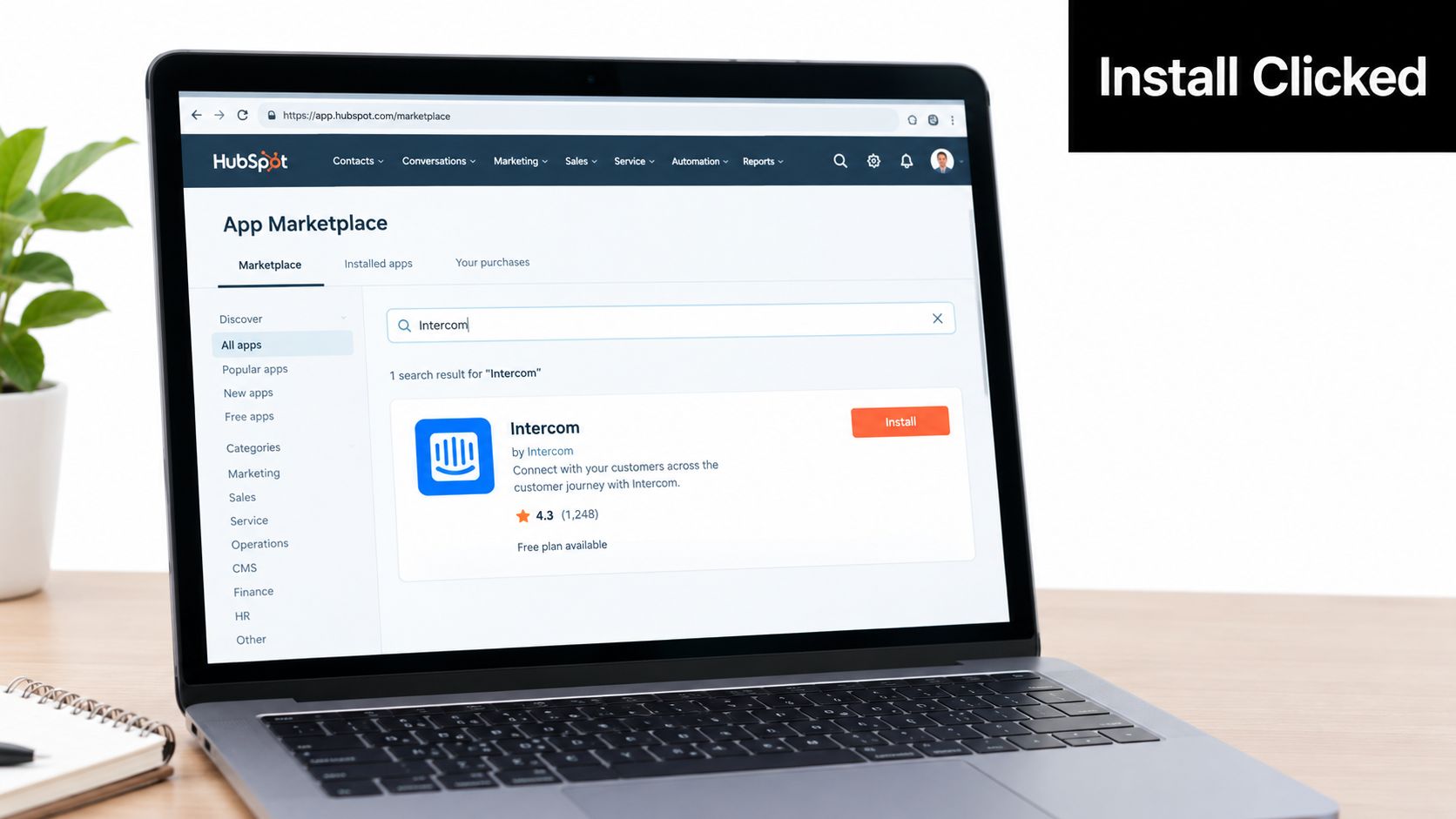
After approval, HubSpot redirects you back to Intercom. A workspace administrator then enables the app, selects the intended HubSpot portal, and confirms the initial settings for sending leads and conversations. Intercom supports automatic or manual sending, so don't turn on automatic creation until you've checked how your existing contacts are matched.
A known Intercom contact makes a good handshake record. Open that contact in HubSpot and confirm that the expected CRM record or activity appears. If nothing arrives, check the portal email used during authorization, the selected workspace, browser privacy settings, and whether a blocked third-party cookie interrupted the OAuth return.
The first test should prove identity, not just transport. A record arriving in HubSpot is insufficient if it arrives under the wrong contact or with incorrect ownership.
Use both platforms' audit logs to verify the integration user. Then inspect the HubSpot contact timeline and confirm that the test conversation activity has the expected timestamp, assignee, and tags. Keep the test narrow. A small, traceable record makes a mapping problem much easier to isolate than a sudden batch of production contacts.
If your team needs an Intercom-centered support workflow, the Intercom integration page from Halo AI provides another reference point for how support data can sit alongside connected operational systems. Don't add that layer until the native CRM connection has passed its own validation.
A short walkthrough can help administrators visualize the installation path:
Finish by recording the portal ID, authorizing user, enabled workspace, selected sync behavior, and date of approval. Those details become valuable when a later administrator sees an unexpected record and needs to understand why the connector created it.
Mapping Intercom Objects to HubSpot Properties
The mapping exercise determines whether the integration creates useful CRM context or merely adds activity noise. HubSpot's marketplace mapping identifies several native targets: Leads sync to Contacts, Qualification Details sync to Contact Properties, Conversations sync to Timeline, Contact Owners sync to Owners, and Status syncs to Deal Properties. That scope gives you a practical starting point, but it doesn't mean HubSpot will automatically create every business object your team uses.
Start with identity and ownership
Email is the first identity check. Before enabling automatic contact creation, decide how the team handles contacts that already exist, archived contacts, aliases, and records with inconsistent addresses. A matching existing record is preferable to creating another contact, but your test must prove that behavior in your own portal.
Map only fields with a clear operational purpose. Name, email, phone, company name, qualification details, ownership, and conversation activity usually deserve attention. If an Intercom field doesn't drive routing, reporting, personalization, or follow-up, leaving it unmapped can reduce clutter.
Separate lifecycle data from timeline activity
HubSpot contact properties and timeline events serve different jobs. Properties represent current state, while timeline events preserve activity context.
| Intercom Object or Field | HubSpot Target | Sync Direction | Notes |
|---|---|---|---|
| Lead | Contact | Intercom to HubSpot | Creates or updates the CRM contact record |
| Qualification Details | Contact properties | Intercom to HubSpot | Map only fields with a defined business use |
| Conversation | Contact timeline | Intercom to HubSpot | Records activity, not a complete ticket archive |
| Contact Owner | HubSpot owner | Intercom to HubSpot | Verify the matching user before routing |
| Status | Deal properties | Intercom to HubSpot | Requires a deliberate interpretation of status |
| Legacy transcript | No complete native target | Not a full native backfill | Plan a migration or API process separately |
The timeline is where representatives should look for conversation activity and other supported events. It shouldn't be treated as a replacement for the full Intercom transcript archive or for a HubSpot ticket record.
Keep object boundaries explicit
Contacts may sync, but deals, tickets, and companies don't automatically become complete operational objects through the native connector. If a qualified conversation should produce a deal, build that as a HubSpot workflow with clear deduplication rules. If an escalation needs a ticket, create it through a supported automation path and store the source conversation ID.
Custom Intercom fields need their own HubSpot Contact properties when the native mapping doesn't fit an existing field. Use a consistent naming convention, such as an i_ prefix, and document the source, data type, allowed values, and owner of each property. A normalized status field is safer than mapping several differently worded Intercom tags directly into downstream automation.
Sync Settings, Direction, and Hidden Limits
The native settings are useful, but they don't amount to bidirectional operational synchronization. You can choose the Intercom workspace, select the receiving HubSpot portal, define how new contacts are handled, set defaults for lifecycle and ownership, and decide whether conversation activity should appear on contact records. Those controls help you govern the flow, not eliminate the need for data architecture.
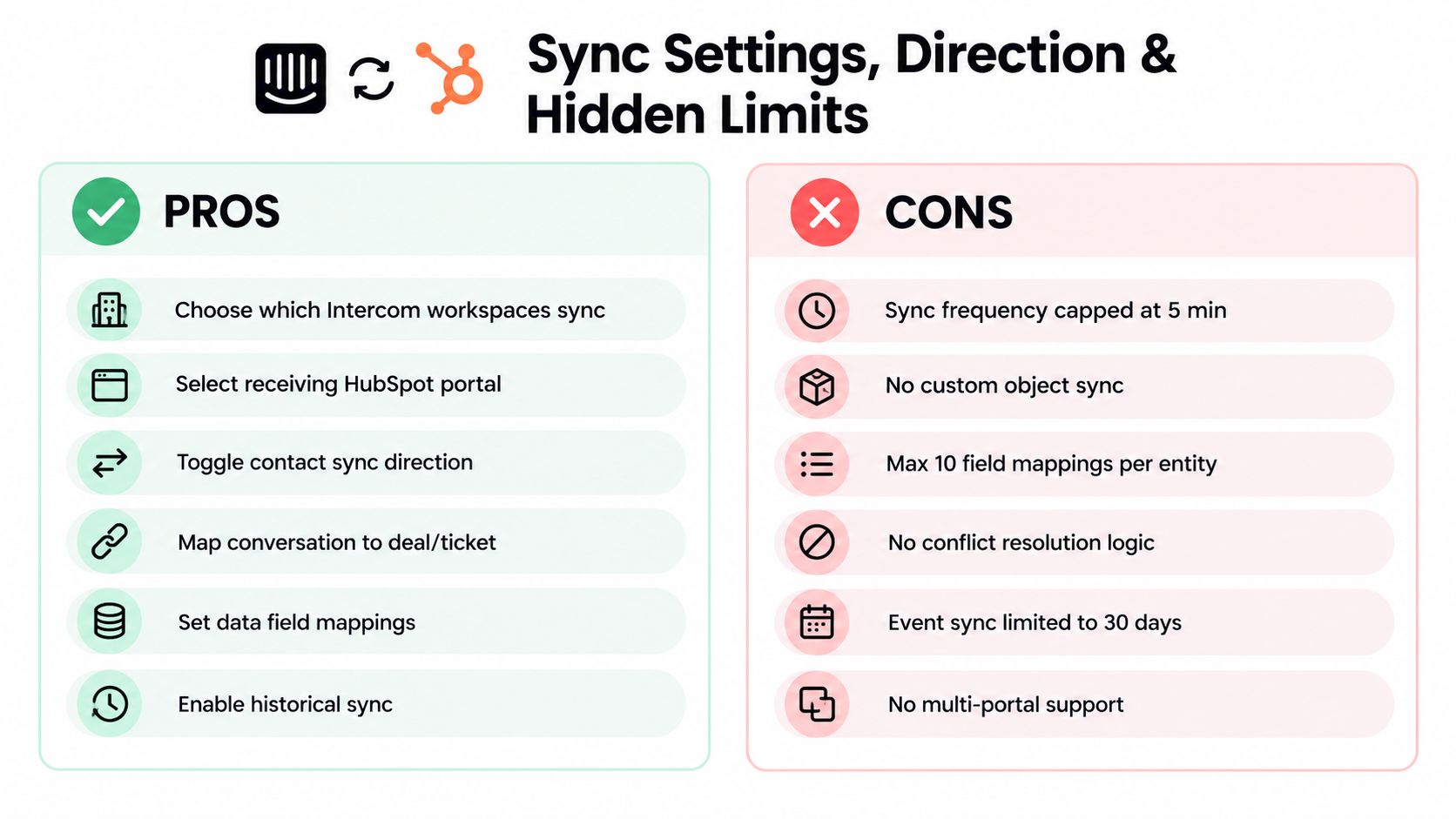
The most important limitation is ticket scope. HubSpot's Intercom Data Sync marketplace listing explicitly says Tickets do not sync through that integration and directs teams to Intercom's own ticket integration when ticket syncing is needed. Conversation events on a contact timeline are not the same thing as HubSpot tickets, queues, SLAs, or ticket ownership.
Historical continuity has a separate constraint. Technical migration guidance describes Intercom conversation API access as constrained by a 90-day window and 10-second rate limits, so migration-grade backfills need incremental extraction and throttling rather than one unplanned export. Those values come from the Intercom to HubSpot migration guide, and they should be treated as engineering constraints to validate against the current API behavior before implementation.
Build around the ceiling:
- Ticket mirroring: Use a supported Intercom ticket integration, middleware, or a small API service when HubSpot must contain ticket records.
- Older history: Export and transform legacy data in batches, preserving the original conversation identifier.
- Rate protection: Put high-volume work behind a queue so retries are idempotent and throttled.
- Workflow handoff: Trigger HubSpot actions from fields or activities that land in HubSpot, rather than assuming an Intercom webhook becomes a native CRM trigger.
The result is a more honest operating model. Intercom remains the conversation workspace, HubSpot becomes the CRM and reporting layer, and middleware handles the records that the native app doesn't cover. The automated support with HubSpot integration guide is useful context for designing that broader workflow without pretending the connector is a full mirror.
Testing the Integration Before Full Rollout
Run validation in a HubSpot sandbox paired with an Intercom test workspace whenever your account structure allows it. Production testing creates unnecessary cleanup work, especially when a matching failure generates a duplicate contact that later enters a live routing workflow.
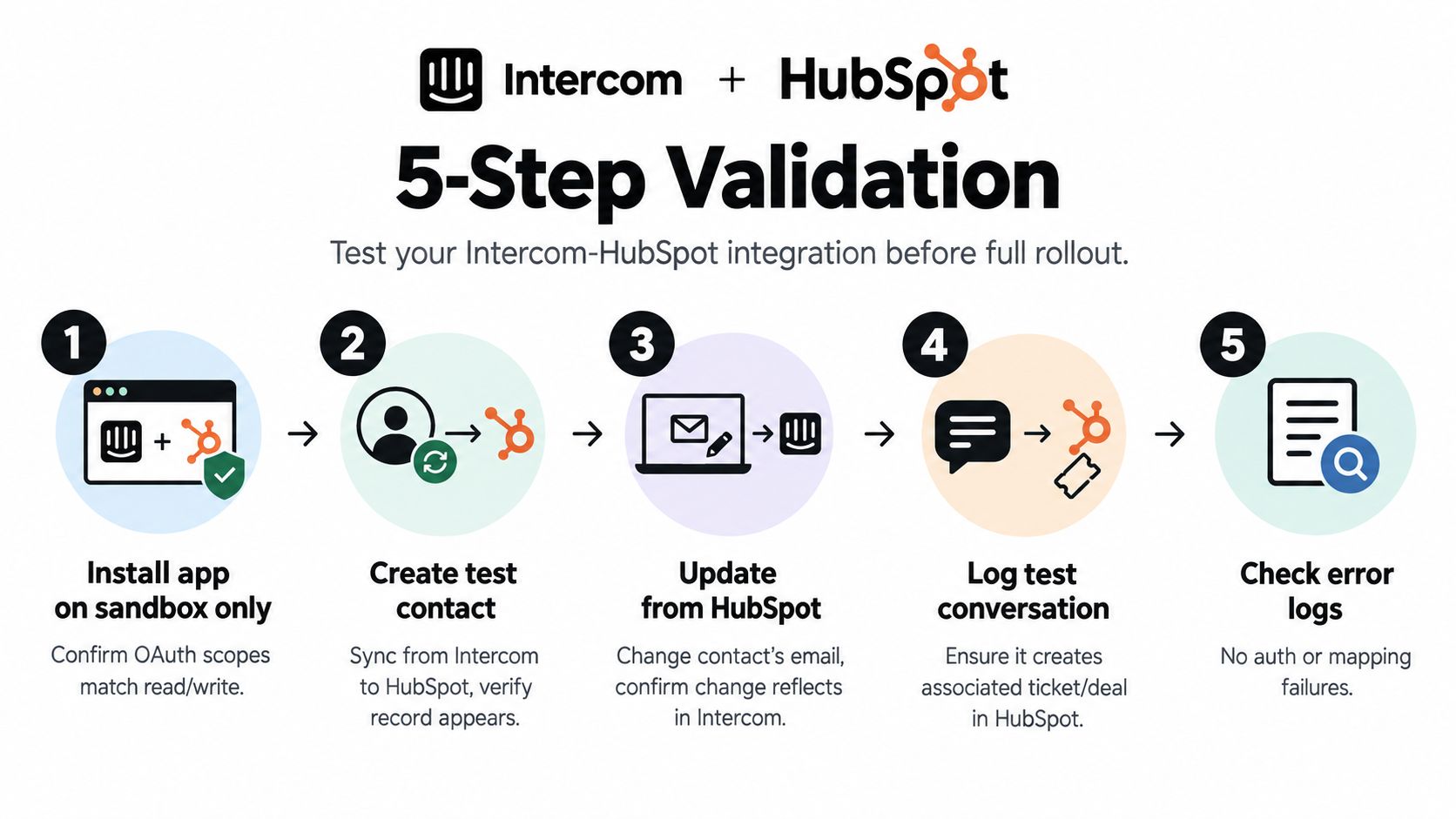
Use five tests, each with a clear pass condition.
- Install against the sandbox only. Confirm the OAuth approval is attached to the intended portal and that the approved permissions match the connection's purpose.
- Create different contact shapes. Test a new email, an existing HubSpot Contact with the same email, and a contact whose email exists only as a Marketing Contact. Trace each record through the sync rather than checking only whether something appeared.
- Test positive and negative lifecycle behavior. Apply a tag that should change the mapped lifecycle or status, then test a conversation tag that should not cause an upgrade.
- Inspect conversation activity. Close a test conversation and verify the timeline event's timestamp, assignee, and tags. Check what context is present and what remains available only in Intercom.
- Exercise the queue. Simulate a burst of contacts and observe whether throttling produces retries, dropped records, or delayed delivery.
Don't approve rollout until the support lead can answer these questions:
- Which system owns contact identity?
- What happens when a contact is archived in HubSpot?
- Which fields are authoritative in Intercom?
- Which events create sales or CS follow-up?
- How are failed records detected and replayed?
- Who reviews the sync log after launch?
The most common production problem is a mapping failure that looks like a transport failure. Duplicate Contacts can appear when HubSpot's existing record was archived or uses a different email. Reactivate or unarchive the intended record before initial sync, then rerun the test instead of allowing the connector to create another identity.
A disciplined testing mindset resembles the evaluation used in a B2B LinkedIn tool comparison: define the use case, test the actual workflow, and judge the tool by operational fit rather than by the marketplace description.
Workflows and Handoffs Powered by the Integration
A synced Intercom event matters only when it changes the next action. A conversation on a HubSpot timeline is passive until it assigns an owner, creates a task, updates a list, or alerts another team. Treat the native app as an ongoing-sync tool, not as a migration path. Confirm which fields and events arrive before building automation around them.
Start with a narrow sales segment. Create a HubSpot list for Intercom leads with recent product engagement, repeated sessions, and no associated deal. Enroll that list in a sales-cadence workflow. Set thresholds from your operating model and available fields, rather than copying a generic template. If Intercom tags signal qualification intent, use them for list membership or workflow enrollment, then verify that the mapped values match HubSpot's allowed properties.
Customer success needs a separate handoff path. Product-tagged conversations can notify the product team, while billing conversations can create a task for the assigned customer success owner. Keep each event actionable: the notification should identify who acts, what happened, and where the supporting record lives. If ticket details do not sync as expected, link the Intercom conversation or route the case manually instead of creating an orphaned HubSpot task.
Retention workflows need human review. “Cancel” and “refund” can describe a question, a request, or a completed action. Route these conversations to the retention team for review, but do not label an account as churn risk from a keyword alone.
Use this rollout checklist:
- Permissions: Confirm the approved OAuth scopes and authorizing administrator.
- Identity: Test new, existing, archived, and alias-based contacts.
- Mapping: Document each field, target property, sync direction, and allowed value.
- Handoffs: Alert support before enabling lead routing or customer success tasks.
- Monitoring: Review sync logs and failed records during the initial operating period.
- Ownership: Assign responsibility for replaying errors and updating the data model.
For B2B SaaS teams, Halo AI can connect Intercom and HubSpot context, including customer information, deal context, lifecycle stage, and conversation handoff details. That supports autonomous workflows while keeping support and revenue teams aligned. See how AI support with HubSpot integration handles handoffs and workflow triggers. You can explore Halo AI after defining the records and handoffs your native connector must support.
A connector works best when ownership, mapping, and fallback handling are explicit before automation expands.