How to Set Up Linear Bug Integration for Your Support Workflow: A Complete Guide
Linear bug integration support eliminates the time-consuming manual process of transferring bug reports from customer support to engineering teams. By automatically connecting support conversations to Linear, this integration ensures bug reports reach developers instantly with complete context—including customer details, reproduction steps, and screenshots—reducing delays and preventing information loss during handoffs.
 Grant CooperFounder17 min read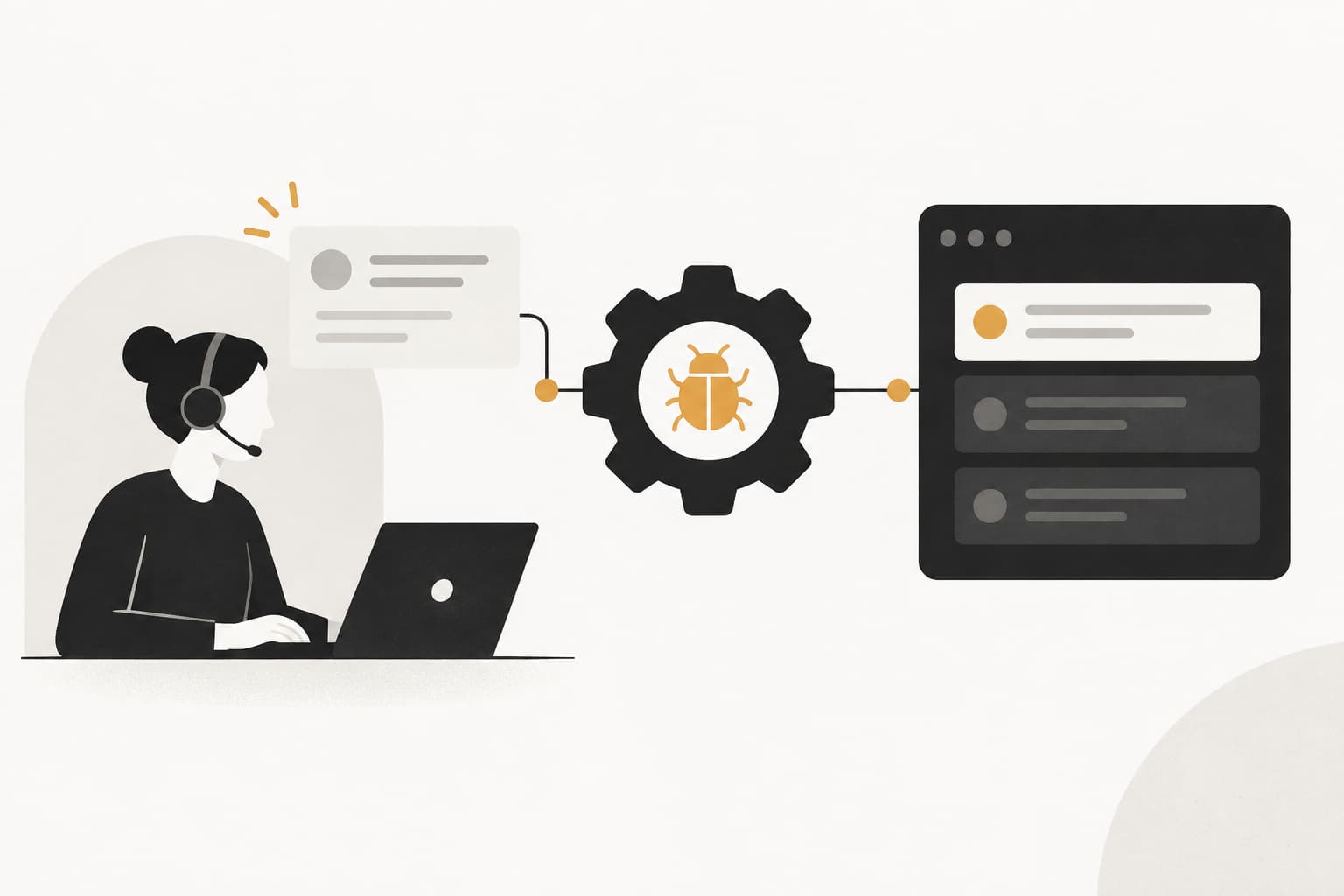
When a customer reports a bug, the clock starts ticking. Every minute spent manually copying ticket details into your issue tracker is a minute your engineering team isn't fixing the problem—and a minute your customer is waiting.
Picture this: Your support agent receives a critical bug report. They document the issue, take screenshots, gather reproduction steps, then switch to Linear to manually create a ticket. They copy-paste information, try to remember the right labels, assign it to someone who might be the right engineer, and hope nothing gets lost in translation.
Meanwhile, your customer is still experiencing the bug.
Linear bug integration support bridges this gap by automatically connecting your customer support conversations to your development workflow. Instead of manual handoffs filled with context loss and delays, bug reports flow directly to your engineering team with full context intact—customer details, reproduction steps, screenshots, and all the information needed to fix the issue fast.
This guide walks you through setting up a seamless connection between your support system and Linear. By the end, you'll have an automated pipeline that captures bug details from support tickets, creates properly formatted Linear issues, and keeps both teams synchronized throughout the resolution process.
Whether you're handling dozens or thousands of support tickets monthly, this integration eliminates the manual handoff that slows down bug fixes and frustrates customers. Let's build a workflow where bugs get fixed faster, engineers get better context, and nobody wastes time on data entry.
Step 1: Audit Your Current Bug Reporting Workflow
Before you build something new, you need to understand what's broken. Start by mapping exactly how bugs travel from your support team to your engineering team today.
Shadow your support agents for a day. Watch what happens when a customer reports a bug. Does the agent send a Slack message to engineering? Create a manual Linear ticket? Email a developer directly? Forward the ticket to a manager who then creates the issue? Many teams discover they have multiple inconsistent processes happening simultaneously.
Document the current journey: Write down every step from "customer reports bug" to "engineer starts working on fix." Include all the tools touched, people involved, and time spent at each stage. You'll likely find steps like: agent reads ticket, agent reproduces issue, agent screenshots problem, agent writes summary, agent finds right engineer, agent creates Linear ticket, agent copies information, engineer asks clarifying questions, agent responds with more details.
That's a lot of back-and-forth.
Now identify the bottlenecks. Common problems include duplicate bug reports when multiple customers hit the same issue, missing reproduction steps because agents don't know what engineers need, delayed handoffs when tickets sit in queues waiting for someone to manually process them, and context loss when critical details don't make it from the support conversation into the Linear issue.
Talk to your engineers: Ask them what information they actually need to fix bugs efficiently. You'll typically hear requests for specific details like the customer's account ID or plan tier, exact reproduction steps in order, screenshots or screen recordings showing the issue, browser and device information, error messages from logs, and what the customer expected to happen versus what actually happened.
Create a simple spreadsheet tracking your baseline metrics. For one week, count how many bugs get reported, how long it takes from report to Linear ticket creation, how many follow-up questions engineers ask because context is missing, and how many duplicate tickets get created for the same underlying issue.
This baseline becomes your benchmark. When your integration is live, you'll measure against these numbers to prove the value. Most teams find they're spending 10-15 minutes per bug on manual ticket creation—time that adds up fast when you're handling hundreds of support conversations weekly. Understanding how to measure support automation success will help you track improvements accurately.
Step 2: Configure Linear Workspace Settings for Support Integration
Your Linear workspace needs structure before support tickets start flowing in. Think of this as building the container that will hold all those incoming bug reports in an organized, actionable way.
Start by creating a dedicated team or project in Linear specifically for support-originated bugs. Many teams call this "Customer Issues" or "Support Bugs" to distinguish it from internally discovered issues. This separation helps engineers quickly identify bugs that have customers actively waiting for fixes.
Set up custom labels that add context: Create labels for bug severity (Critical, High, Medium, Low), customer tier (Enterprise, Business, Starter), product area (Dashboard, API, Mobile App, Integrations), and source (Support, Internal, Beta). These labels enable powerful filtering and help engineers prioritize work based on customer impact. Implementing intelligent support ticket tagging can automate much of this categorization.
Here's where it gets interesting: Configure issue templates that capture the essential fields every bug report needs. Create a template called "Support Bug Report" that includes sections for customer information, steps to reproduce, expected behavior, actual behavior, environment details, and attachments.
The template acts as your quality control. When tickets auto-create in Linear, they'll follow this structure, giving engineers consistent, complete information every time.
Establish workflow states that reflect both teams' needs: Your standard Linear workflow might be Backlog → Todo → In Progress → Done. For support bugs, consider adding states like "Needs Reproduction" (engineering can't reproduce it yet), "Waiting on Customer" (need more info from support), and "Ready for QA" (fixed, needs verification before customer notification).
These states enable the bidirectional sync you'll set up later. When an engineer moves a bug to "Waiting on Customer," your support team needs to know they should reach back out for clarification.
Configure default assignees and notification settings. Decide whether support bugs should auto-assign to a triage engineer, a team lead, or stay unassigned until someone claims them. Set up team notifications so the right people get alerted when new support bugs arrive without spamming everyone.
Create views that help engineers process support bugs efficiently: Build a filtered view showing "All Open Support Bugs by Priority" and another showing "Support Bugs Waiting on Customer Response." These views become the daily dashboard for whoever handles support-originated issues.
Test your setup by manually creating a few sample issues using your new template. Make sure the labels work, the workflow states make sense, and the views display correctly. Get feedback from a few engineers before you connect the automation—it's much easier to refine the structure now than after hundreds of tickets have already flowed through.
Step 3: Connect Your Support Platform to Linear
Now comes the technical connection between your support system and Linear. The specific steps vary depending on your support platform, but the core concepts remain consistent across tools.
Start by generating the necessary authentication credentials. In Linear, navigate to Settings → API → Create New API Key. Give it a descriptive name like "Support Integration" and copy the key immediately—you won't see it again. This key allows your support platform to create and update issues in Linear on your behalf.
If your support platform supports OAuth instead of API keys, prefer that option. OAuth provides more granular permissions and doesn't require storing long-lived credentials. The setup involves authorizing your support app to access your Linear workspace, similar to how you'd connect other third-party tools. Exploring support automation integration options can help you choose the right approach for your stack.
Map your data fields between systems: This is where you define how information flows from support tickets to Linear issues. At minimum, you'll map the ticket subject to the Linear issue title, the ticket description to the Linear issue description, and the ticket priority to the Linear priority level.
But the real power comes from mapping custom fields. Connect your support platform's customer ID field to a custom Linear field, map ticket tags to Linear labels, and link the support agent's name to a Linear field so engineers know who to ask for clarification.
Here's a practical example: When a support ticket has priority "Urgent" and tag "Bug," it should create a Linear issue with priority "Urgent," label "Customer-Reported," and automatically populate the customer's account details in the description.
Configure bidirectional sync so updates flow both ways: When an engineer changes a Linear issue status to "Fixed," your support platform should update the original ticket status automatically. When an engineer adds a comment asking for more details, that comment should appear in the support ticket so the agent sees it.
This bidirectional connection keeps both teams working from the same source of truth. Support agents don't need to constantly check Linear for updates, and engineers don't need to manually notify support when bugs are fixed.
Set up webhook endpoints if your integration requires them. Webhooks allow Linear to push updates to your support platform in real-time rather than requiring constant polling. Configure webhooks for issue status changes, issue comments, and issue assignments—the events that support agents care about.
Test everything with a sample bug report before going live: Create a test support ticket with all the fields populated. Verify it creates a Linear issue with the correct title, description, labels, and priority. Add a comment to the Linear issue and confirm it appears in the support ticket. Change the Linear status and verify the support ticket status updates accordingly.
Run through failure scenarios too. What happens if required fields are missing? Does the integration fail gracefully with a helpful error message, or does it create broken issues? Test with edge cases like extremely long descriptions, special characters in titles, and attachments of various file types.
Document the connection details for your team. Write down which API keys are used, where webhooks are configured, and who has admin access to modify the integration. Future you will thank present you when something needs troubleshooting.
Step 4: Build Automation Rules for Bug Ticket Creation
The connection exists, but it won't do anything useful until you define the rules for when and how support tickets become Linear issues. This is where you encode your team's knowledge into automated workflows.
Start by defining your triggers. Not every support ticket should create a Linear issue—only the ones that represent actual bugs requiring engineering work. Common trigger conditions include tickets tagged with "Bug" or "Technical Issue," tickets marked as priority "High" or "Urgent," or tickets where the support agent manually selects "Create Linear Issue."
Build smart conditions that reduce noise: Add filters like "only create Linear issue if customer is on a paid plan" or "only create issue if bug hasn't been reported in the past 7 days." These conditions prevent your engineering team from drowning in duplicate reports or issues from free trial users testing edge cases.
Create rules for auto-populating bug details with the context engineers need. When a ticket triggers Linear issue creation, your automation should extract the customer's account ID, subscription tier, and usage metrics, format the reproduction steps from the support conversation into a numbered list, attach any screenshots or screen recordings the customer provided, and include the customer's browser, device, and app version information. Learning how to automate support tickets effectively will maximize the value of these rules.
Here's where AI-powered support platforms shine. Instead of requiring agents to manually fill structured forms, intelligent systems can parse natural support conversations and automatically extract relevant details. The customer says "I clicked the export button and got an error"—the system captures that as Step 1 in reproduction steps.
Set up priority mapping based on customer impact: Your support platform's priority levels might not directly match Linear's. Create rules like "Enterprise customer + Critical priority = Linear Urgent," "Business customer + High priority = Linear High," or "Starter customer + Medium priority = Linear Medium." This ensures engineering resources align with customer value.
Configure assignment rules to route bugs intelligently. You might assign based on product area (API bugs go to the backend team, dashboard bugs go to frontend), customer tier (Enterprise bugs get assigned to senior engineers), or round-robin distribution (spread the load evenly across the team).
Build in deduplication logic to handle the same bug reported by multiple customers. When a new bug ticket matches an existing Linear issue (similar title, same error message, identical reproduction steps), either add a comment to the existing issue noting another customer hit it, or increment a "Affected Customers" counter rather than creating a duplicate. Implementing automated bug tracking integration handles much of this complexity automatically.
Add enrichment rules that provide business context: When creating the Linear issue, automatically include data like the customer's monthly recurring revenue, how long they've been a customer, their overall health score, and recent support history. Engineers can then make informed decisions about prioritization based on customer impact, not just technical severity.
Test your automation rules with real support tickets from the past week. Take 10-20 actual bug reports and run them through your new automation. Do the Linear issues get created correctly? Is the right information included? Are they assigned to appropriate teams? Refine your rules based on what you learn.
Step 5: Establish the Feedback Loop Between Teams
The integration creates Linear issues automatically, but the real value comes from closing the loop back to customers. This step ensures that when engineers fix bugs, customers actually hear about it.
Configure notifications so support agents see when bugs are fixed in real-time. When a Linear issue moves to "Done" or "Deployed," trigger an automatic notification to the original support ticket. The agent gets alerted that the bug affecting their customer has been resolved, prompting them to reach back out with good news.
Set up automated customer updates when status changes: Take it a step further with direct customer communication. When a bug moves to "In Progress," send an automated update: "Good news—our engineering team is actively working on the issue you reported." When it moves to "Fixed," send: "The bug you reported has been fixed and will be included in our next release."
These proactive updates transform customer perception. Instead of wondering if their bug report disappeared into a black hole, they see tangible progress. Many teams find that simply acknowledging work-in-progress reduces follow-up tickets asking "what's the status?" This approach directly supports customer support churn prevention by keeping customers informed and engaged.
Create a process for engineers to request additional context from support. Add a Linear issue status called "Needs More Info" that triggers an automated message to the support agent: "Engineering needs additional details to fix this bug." Include a form or comment template asking specific questions so agents know exactly what to gather.
The key is making this process low-friction. Engineers shouldn't need to leave Linear, and support agents shouldn't need to constantly monitor Linear for updates. The integration handles the communication automatically.
Build dashboards showing bug resolution metrics for both teams: Create a shared view displaying average time from report to fix, number of bugs fixed this week, bugs waiting on customer information, and bugs affecting multiple customers. Both teams can see the same data, fostering alignment around shared goals.
Support teams gain visibility into engineering progress without pestering developers for updates. Engineering teams see the customer impact of their work, making prioritization decisions easier. Everyone wins.
Implement a weekly sync meeting where both teams review the dashboard together. Discuss patterns in bug reports, identify recurring issues that might indicate deeper problems, and celebrate wins when critical bugs get fixed quickly. This regular touchpoint strengthens the collaboration that the technical integration enables.
Consider adding a feedback mechanism where engineers can rate the quality of bug reports. When a Linear issue created from support has all the necessary context and leads to a quick fix, engineers can mark it as "Excellent Report." This feedback helps support agents understand what good bug reports look like and continuously improve their documentation. Implementing automated support quality assurance can systematize this improvement process.
Step 6: Train Your Team and Launch the Integration
Your integration is configured, tested, and ready. Now you need to prepare your teams for the new workflow before flipping the switch.
Start with your support agents. Walk them through the new bug reporting workflow in a hands-on training session. Show them exactly what happens when they tag a ticket as "Bug"—how it automatically creates a Linear issue, what information gets captured, and how they'll receive updates when engineering makes progress.
Demonstrate the before-and-after: Show a side-by-side comparison of the old manual process versus the new automated flow. Let agents see how much time they'll save and how much better the customer experience becomes when bugs get routed instantly to engineering with full context.
Address their concerns directly. Some agents might worry about losing control or visibility into bug status. Show them the dashboard where they can see all their reported bugs and their current status. Others might fear the automation will make mistakes—walk through the validation rules and show how they can manually create Linear issues when needed.
Train engineers on how support-originated issues will appear and what context to expect. Show them the Linear template, explain the custom fields that contain customer information, and clarify the labels that indicate priority and product area. Make sure they understand that the "Waiting on Customer" status triggers a notification back to support for more details. Teams focused on automated support for product teams will find this alignment particularly valuable.
Run a pilot period with a subset of tickets to identify issues: Don't launch to your entire support team on day one. Start with 2-3 support agents who handle the most bug reports. Let them use the integration for two weeks while the rest of the team continues the old process.
Monitor the pilot closely. Track metrics like how many Linear issues get created, how complete the information is, how often engineers need to ask for clarification, and how quickly bugs get resolved compared to the old workflow. Gather feedback from both pilot agents and the engineers receiving the issues.
You'll discover edge cases you didn't anticipate. Maybe certain types of bugs need different templates, or specific product areas need custom routing rules. The pilot period lets you refine the automation before rolling it out company-wide.
Document the process and create quick-reference guides for both teams. Build a one-page cheat sheet for support agents showing when to tag tickets as bugs, what information to include, and how to check bug status. Create a similar guide for engineers explaining the new Linear labels, what the custom fields mean, and how to request more information from support.
Make the guides visual and practical: Include screenshots of the workflow, example tickets, and sample Linear issues. Write in plain language, not technical jargon. The goal is a resource someone can reference in 30 seconds when they forget a step.
Schedule office hours during the first week after full launch. Make yourself available for questions as teams adjust to the new workflow. You'll answer the same questions multiple times—write down the answers and add them to your documentation.
Celebrate early wins publicly. When a critical bug gets reported, automatically routed to engineering, fixed, and the customer notified—all within hours instead of days—share that success story. Show both teams the tangible impact of the new workflow on customer satisfaction and engineering efficiency.
Your Integration is Live—Now Make it Better
Your Linear bug integration is now ready to transform how support and engineering collaborate. Before you move on to other projects, run through this quick verification checklist to ensure everything works as expected.
Test the complete bug creation flow end-to-end with a real support ticket. Confirm that the Linear issue gets created with the correct information, proper labels, and appropriate priority. Verify bidirectional status syncing by changing the Linear issue status and checking that the support ticket updates accordingly. Validate that customer context reaches engineers intact—account details, reproduction steps, screenshots all present and properly formatted. Ensure support agents receive resolution notifications when engineers mark bugs as fixed.
If any of these checks fail, revisit the relevant configuration step and troubleshoot before handling real customer bugs.
Monitor your first few weeks of live usage closely: Track metrics like average time from bug report to Linear issue creation (should be under 1 minute with automation), time from report to fix (compare against your baseline), number of duplicate bug reports (should decrease significantly), percentage of Linear issues requiring follow-up questions for missing context (aim for under 20%), and customer satisfaction scores for bug-related tickets (should improve as resolution speed increases).
These metrics tell you whether the integration delivers real value or just moves manual work to a different system. Most teams see dramatic improvements—bugs that took days to reach engineering now arrive in seconds, complete with all the context needed for fast fixes.
As your team adapts, refine your automation rules based on what you learn. Maybe you discover that certain bug types need different priority mappings, or specific customers should always get immediate engineering attention regardless of technical severity. The integration should evolve with your team's needs.
Watch for patterns in the bugs flowing through your system. If you're seeing the same issue reported repeatedly, that's a signal to prioritize the fix or improve your product documentation. If certain product areas generate disproportionate bug reports, that might indicate quality issues worth investigating.
The goal is a workflow where customers get faster fixes, engineers get better context, and nobody wastes time on manual data entry. When a customer reports a bug, it should trigger an automated chain of events: issue created in Linear with full context, assigned to the right team, prioritized appropriately, fixed by engineering, verified by QA, and customer notified—all with minimal human intervention in the handoffs.
Your support team shouldn't scale linearly with your customer base. Let AI agents handle routine tickets, guide users through your product, and surface business intelligence while your team focuses on complex issues that need a human touch. See Halo in action and discover how continuous learning transforms every interaction into smarter, faster support.
How Halo helps
When Halo's AI agent hits a real product issue, it doesn't just escalate — it files the bug in Linear, flags it in Slack, and hands your team the full conversation context automatically. Learn more about Halo's AI-first inbox.